SaveVo video quality, frame rate and codec settings on Windows
Understand SaveVo's Windows quality menu, resolution ceilings, frame-rate preferences and codecs. Choose settings that fit your source and player.
Desktop reports dated 28 September 2026 confirm completed, fully decoded short samples from YouTube, TikTok, Instagram and Facebook. Individual sources and preference combinations still require checking.
Copy the URL of an accessible video you are allowed to save, open SaveVo's Overview, and use Paste Link. For your first download, turn Smart mode off so you can review the source, file format and destination before queueing it. Check the finished file after completion.
Desktop validation on 28 September 2026 completed short YouTube, TikTok, Instagram and Facebook samples through the real download manager. Their files passed full decoding checks. The Facebook Reel guide gives the tested source-specific steps. Those results establish the tested workflows, without promising access to private, removed or region-restricted media.
The manual review records the selected format and output name with the queued job. If a source fails analysis, an error or unavailable result needs attention before another paste can help.
With Smart mode enabled, Paste Link analyzes and queues using the saved toolbar preferences. Review Download Video, Quality, For and Save to before using that faster path.
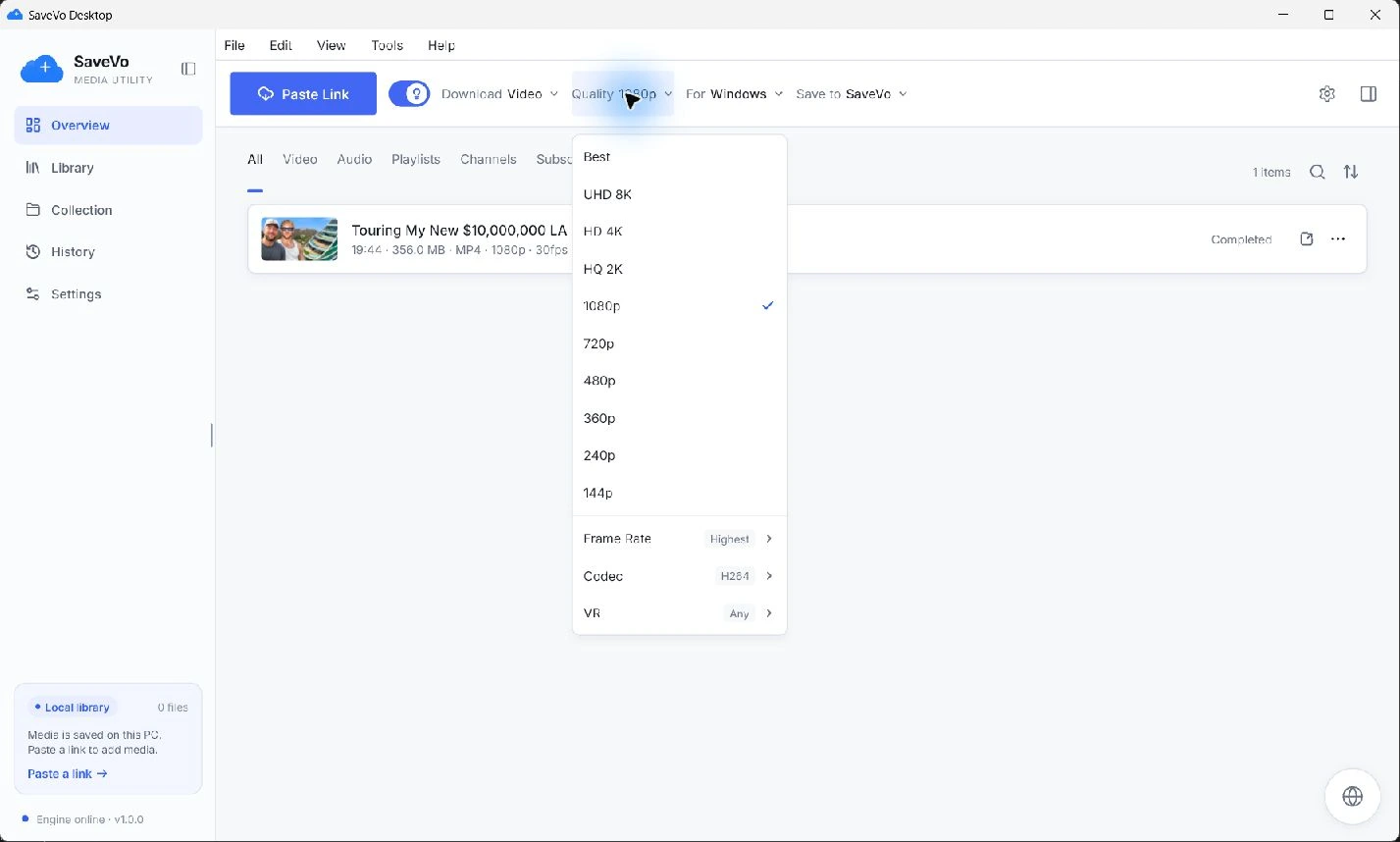
The Windows quality guide explains the resolution, frame-rate and codec menus. A toolbar preference is not a promise about the next video's available streams. The app can report a fallback when a saved device or codec choice is absent; inspect its status when the exact output matters.
Allow the job to complete in the library or queue view. Source analysis, queueing, transfer and processing are separate stages. A detected title or an unfinished item does not establish that a playable file exists.
Open the completed item or its containing folder from the library. Confirm that the saved file opens in the player you plan to use, contains the expected sound, and is stored in the intended folder.
One recorded 19-second test produced a 742,393-byte MKV with 320×240 H.264 video at 15 fps and AAC audio. That is a sample result, not an expected size or resolution for every download.
Lower resolution: compare the actual source formats and your saved quality, frame-rate and codec constraints. Use manual review to inspect one source.
Silent file: check whether the chosen source actually supplies audio. Some social videos expose video-only streams. Changing the extension will not add sound.
Cannot play elsewhere: inspect both the container and codecs. The format guide explains why “MP4” alone is not a complete compatibility description.
Access error: verify the original page. A source that has been removed or requires unavailable authentication needs a source-access check. See unavailable source troubleshooting.
Smart mode uses the saved preferences for analysis and queueing. Turn it off when you want the manual review for each source.
The reports verify particular accessible video samples. Private posts, restricted audiences, images and whole account libraries require their own evidence.
That menu is an output compatibility preference. The supplied application runs on Windows; it does not create a macOS installation.
Desktop analysis reports exposed multilingual choices, but did not download the full multilingual sample or verify every language and subtitle combination. Review the available tracks and inspect the finished file for your use case.