How to download a YouTube video on Android with SaveVo
Save an accessible YouTube video with SaveVo on Android: enter its URL, choose video quality, check the queue and play the saved file.
This guide covers the controls shown in SaveVo Desktop 1.0.0 on Windows. Finished-download output for these preference combinations has not yet been verified.
With Smart mode enabled, open the toolbar's Quality menu to set your video preferences. SaveVo exposes resolution, Frame Rate and Codec choices there. These preferences guide selection from the formats a source actually provides; they do not create a missing resolution or frame rate.
The screenshots show the real SaveVo Desktop 1.0.0 app on Windows. This guide explains its preference controls. It does not establish that every listed combination is available for every video.
| Control | What it selects | What to check |
|---|---|---|
| Quality | A resolution preference, or Best | Whether the source offers the resolution you need |
| Frame Rate | A preferred frame rate, or Highest | The frame rate of the finished file |
| Codec | Any, H264, H265, AV1 or VP9 | Support in the player that will open the file |
These controls work together. A source may offer a resolution without offering the frame rate or codec you prefer. Review an individual download and check its finished file when an exact combination matters.
In Overview, use the switch beside Paste Link to enable Smart mode. The toolbar then shows Download Video, Quality, For and Save to controls.
Click Quality. In the captured app, 1080p is selected. Other menu choices include Best, UHD 8K, HD 4K, HQ 2K, 720p, 480p, 360p, 240p and 144p.
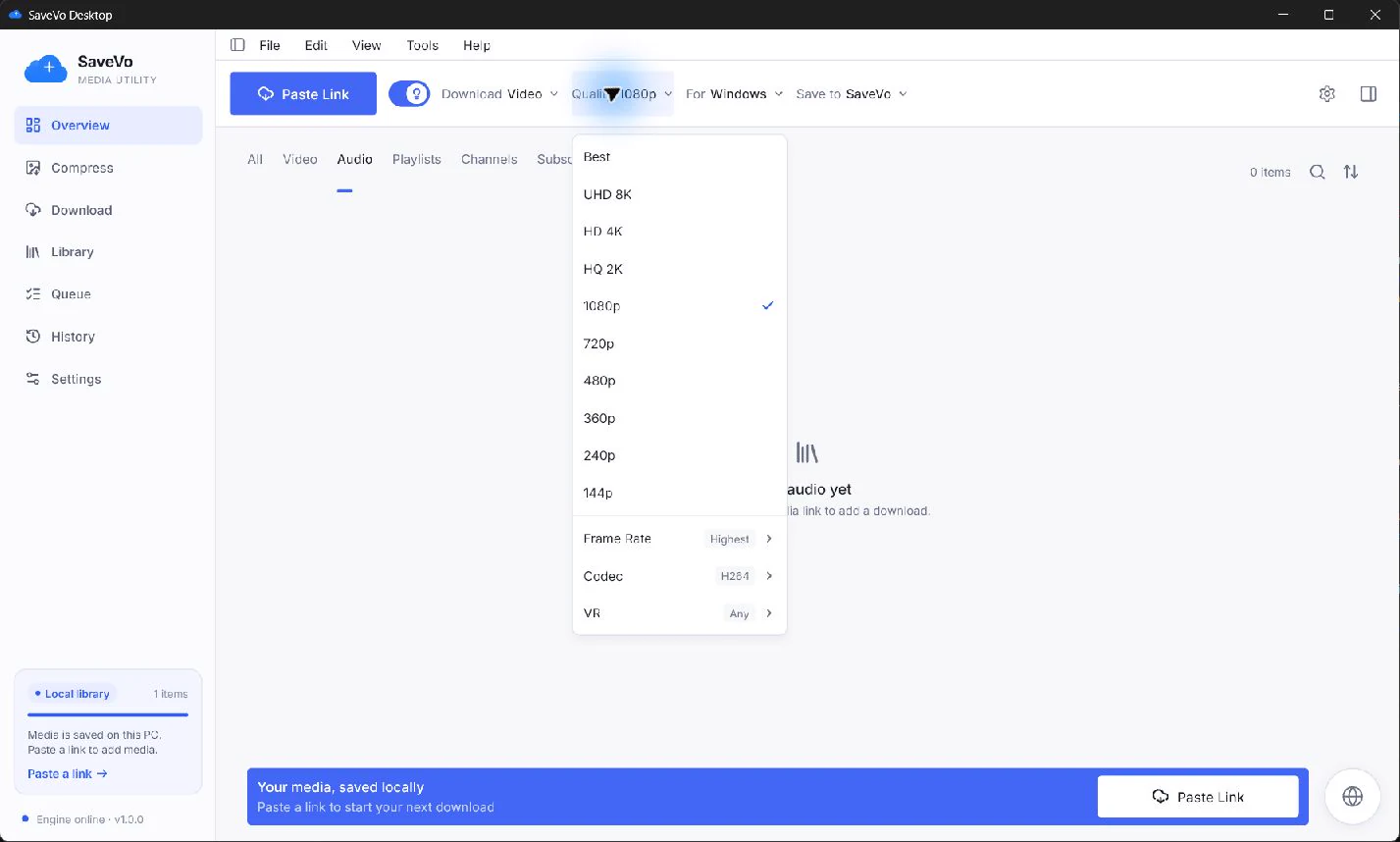
Use a resolution preference as a ceiling for available source formats. Best removes that resolution ceiling; it still depends on what the source supplies. A menu containing UHD 8K does not prove that your source has an 8K stream.
For a phone-sized video, a lower available resolution may be sufficient. Detailed text or a large display may justify a higher one. Keep the destination player and storage budget in mind.
Open the arrow beside Frame Rate. The submenu exposes Highest, 240fps, 120fps, 60fps, 50fps, 30fps and 25fps.
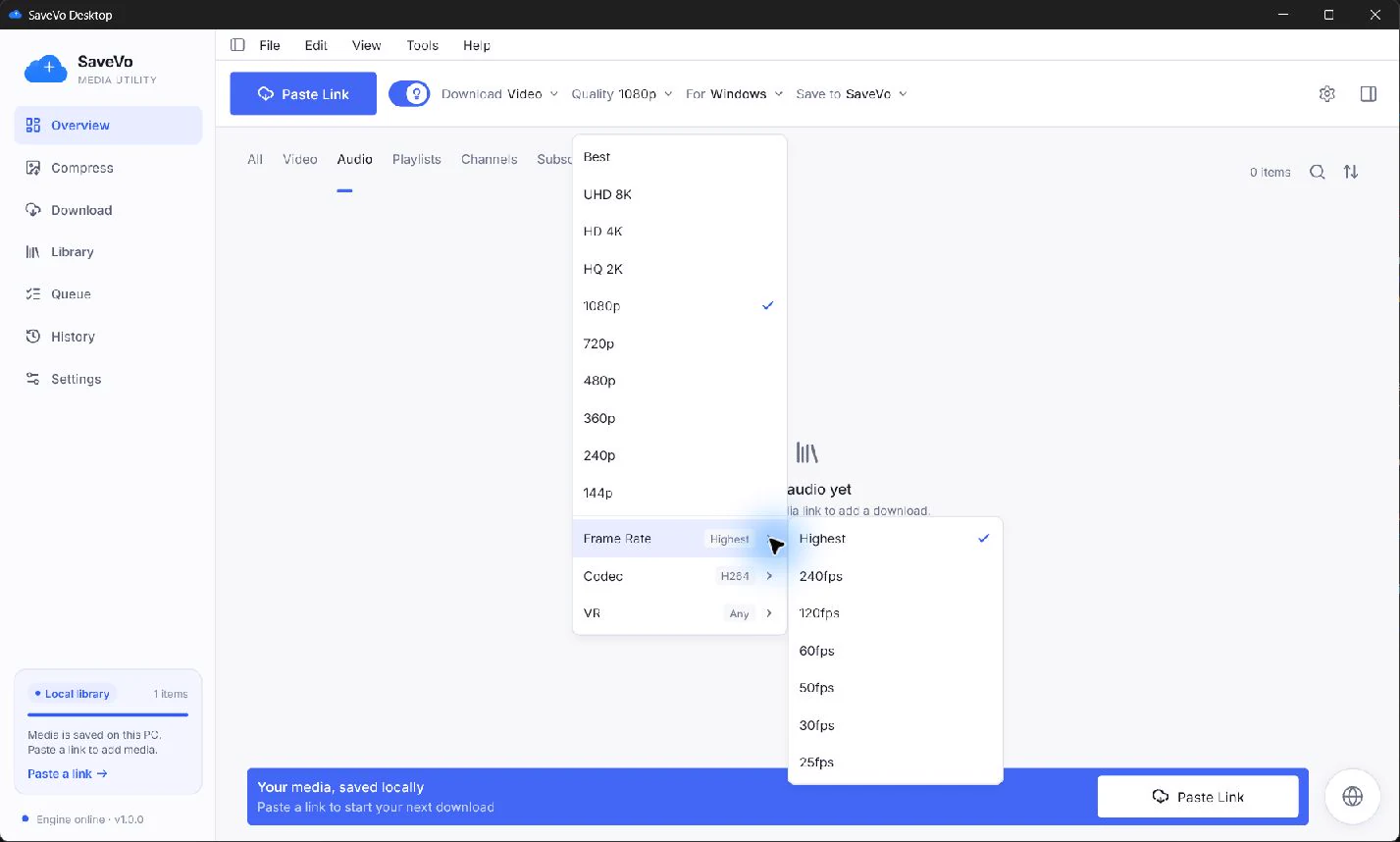
These are selection preferences. A 60fps preference cannot create a genuine 60fps recording from a source that offers only 30fps. Motion quality also depends on how the original footage was captured.
YouTube recommends uploading at the same frame rate as the recording. Its published bitrate tables concern upload preparation, so they should not be read as guaranteed properties of a downloaded stream. YouTube's upload encoding guidance explains that distinction.
Open the arrow beside Codec. The captured app lists Any, H264, H265, AV1 and VP9. The example has H264 selected.
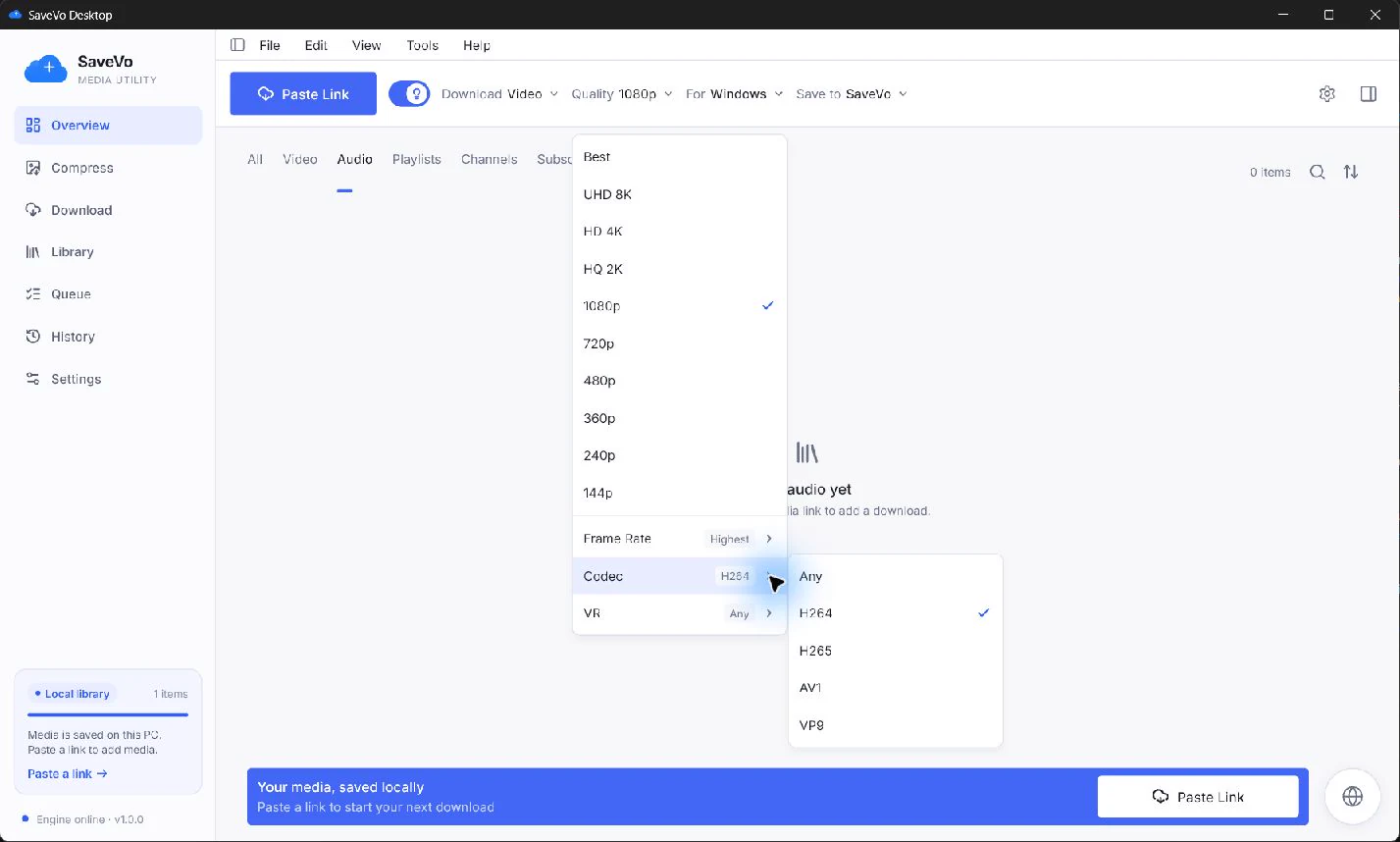
A codec controls how the stream is encoded. A container holds streams and metadata in a file. MP4 and WebM are container names; selecting one does not, by itself, identify its exact video codec. MDN's container guide explains how those pieces fit together.
Choose a specific codec when you know the destination player accepts it. Use Any when you want to avoid restricting selection to one codec. The combination of quality, frame rate, codec and source availability can narrow the usable formats.
Turn Smart mode off to review each download. The toolbar changes to Smart Mode off and Review each download. Use this path when you need to inspect a particular source rather than rely on reusable preferences.
Resolution, bitrate, FPS and codec describe different properties. Two 1080p files can look different because their source footage and encoding differ. Neither a downloader nor a renamed file extension restores detail missing from the original.
The source may not offer the requested combination. Check available source formats, especially when a codec or frame-rate preference also restricts the selection.
The toolbar stores reusable preferences. It is not an inventory of that individual video's streams.
Compatibility also depends on the container, audio, profile, resolution and the destination player. Test the finished file on the device that will play it.
The tested Android app uses a source-specific Choose quality sheet with Video and Audio tabs. Read the Android quality guide for that workflow.