How to download a YouTube video on Android with SaveVo
Save an accessible YouTube video with SaveVo on Android: enter its URL, choose video quality, check the queue and play the saved file.
Enter an accessible video URL in SaveVo, tap Download, switch Choose quality to Audio, select an available M4A row and tap Download again. Once it finishes, open Downloads → Audio and tap the saved item.
We tested this in SaveVo 1.0.2 on Android 10 with the soundtrack of the Blender film Big Buck Bunny. Use audio you own or have permission to save.
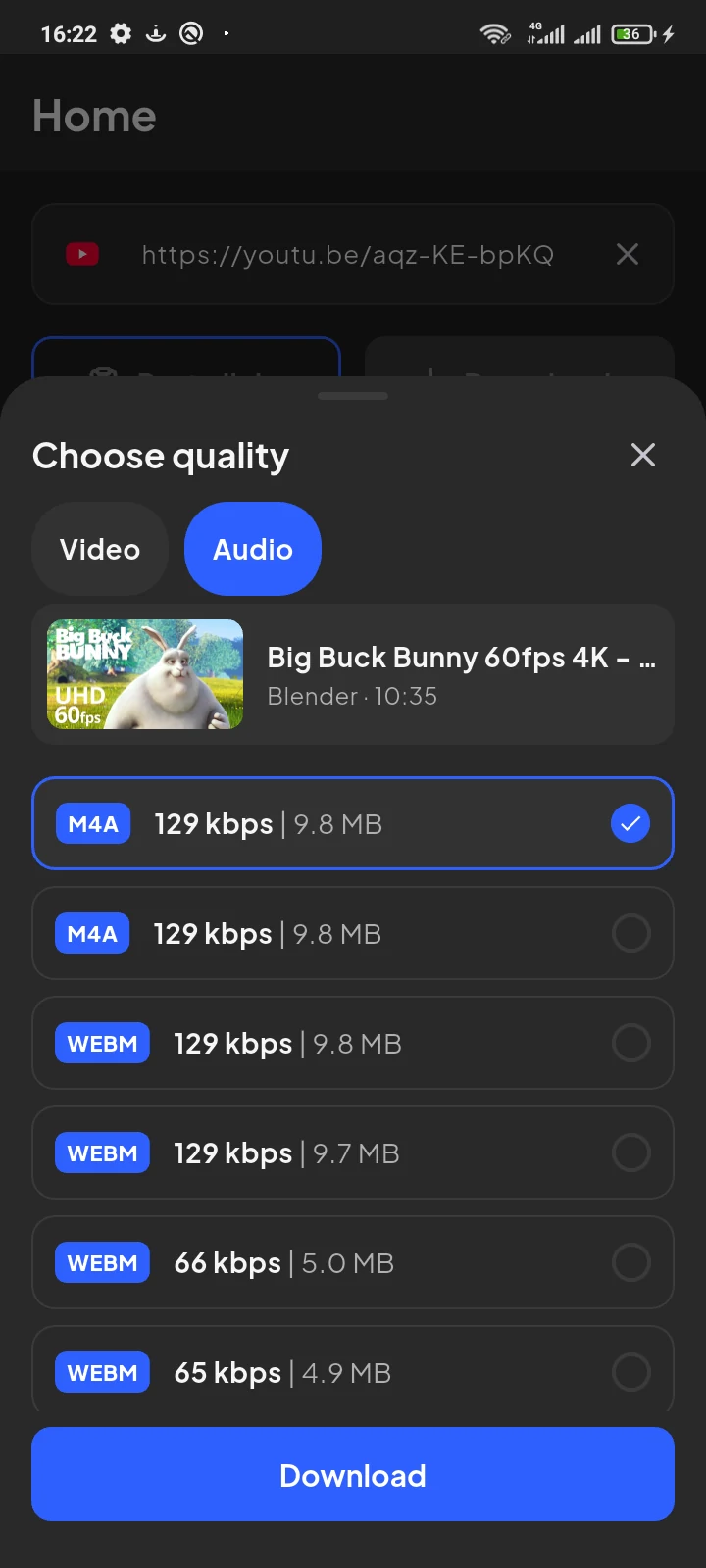
Our source offered M4A rows labelled 129 kbps · 9.8 MB, alongside WebM audio choices. We selected the first M4A row. Another source may offer different choices; do not assume that every URL provides M4A.
Two rows with similar labels are not a reason to download both. Select one, then verify the finished file against your listening and compatibility needs.
Open Downloads and check the status. During our test, the pending audio job appeared under Videos. After completion, the finished M4A appeared under Audio. If you do not see a new audio item immediately, inspect the pending jobs before submitting the same URL again.
Waiting for Wi-Fi means the phone's download policy needs attention. To use cellular data, open Settings → Download settings and enable Download using mobile data. Consider the displayed size and your allowance first. See network and queue troubleshooting.
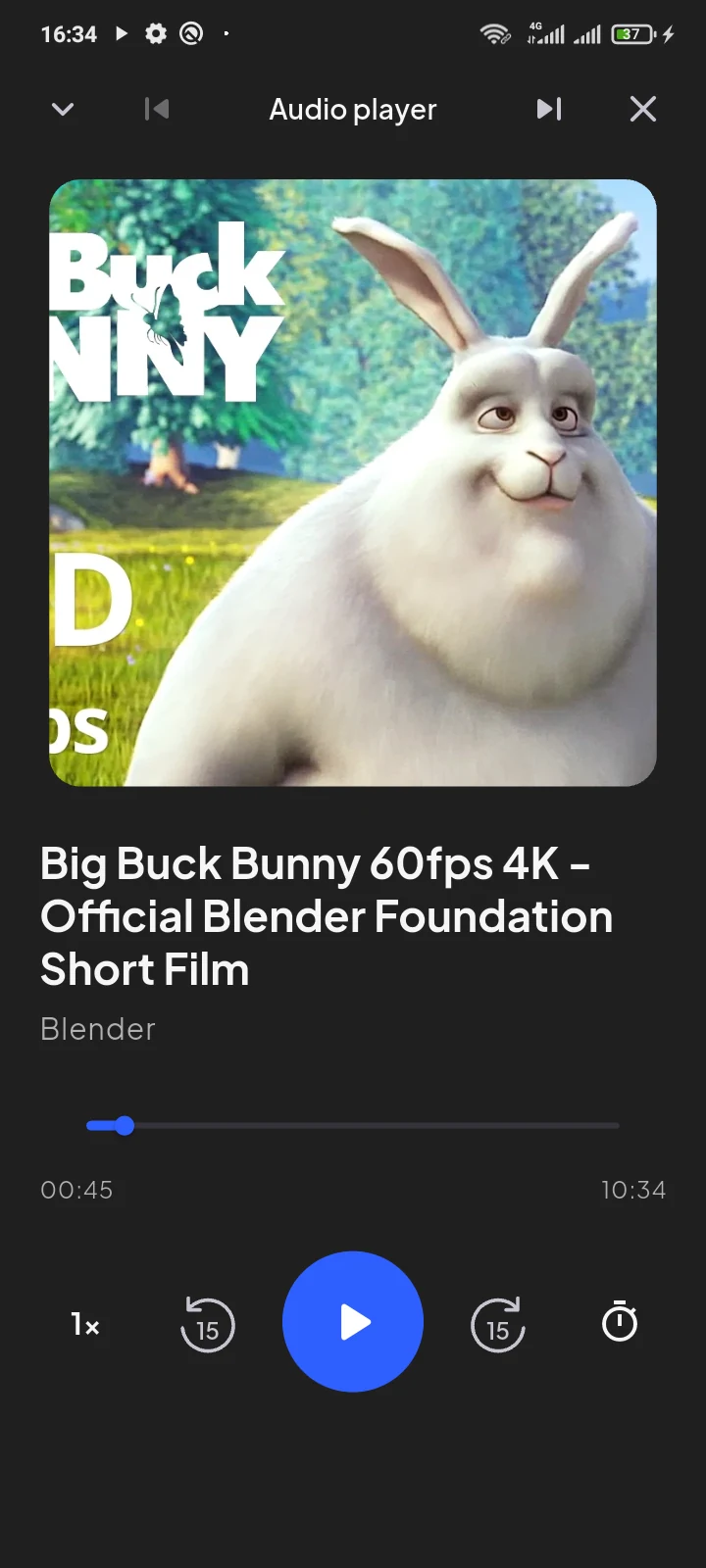
Tap the finished item in Downloads → Audio. SaveVo opened its audio player and advanced through the local file in our test. The player shows a progress bar and a central play/pause control.
The completed sample had these properties:
| Property | Verified result for this sample |
|---|---|
| Container and extension | MPEG-4 audio container, .m4a |
| Audio | One AAC-LC stereo stream at 44.1 kHz, about 128 kbps |
| Video | No video stream |
| Duration | About 10:35 |
| File size | 10,271,496 bytes; displayed as 9.8 MB in SaveVo |
We also decoded the complete file without errors.
These results describe the selected sample. A bitrate estimate, a source title or an M4A extension does not by itself prove the properties of every finished file.
M4A is an audio file extension associated with an MPEG-4 container. The audio codec inside matters too. In this test it was AAC-LC, which Android documents among its supported audio formats. Android's format documentation lists the relevant containers and codecs.
Choose a format your destination player accepts. Increasing a bitrate or converting an already compressed file does not recover missing detail. A blanket “M4A sounds better than MP3” rule is not useful without considering the codec, encoding and source.
This workflow selected an available M4A stream. It does not demonstrate arbitrary MP3 conversion or lossless audio extraction in this Android build.
Our Audio selection produced a file with one audio stream and no video. Use Video instead if you need the picture; see the Android video download guide.
The selector provides an estimate. The completed item reflects the actual output. Small rounding differences do not by themselves indicate a broken file.
Choose from the source's available audio rows. This tested workflow does not include a separate conversion step for creating an absent format.
Keep source and credit notes, check each completed file and maintain a second copy. Read building a local audio library on Android.
Sample artwork: © Blender Foundation / www.bigbuckbunny.org, CC BY 3.0.