How to download a YouTube video on Android with SaveVo
Save an accessible YouTube video with SaveVo on Android: enter its URL, choose video quality, check the queue and play the saved file.
If SaveVo says Waiting for Wi-Fi, check Settings → Download settings → Download using mobile data. Leave it off to wait for Wi-Fi, or turn it on if you want the job to use cellular data. A network-policy wait does not measure download speed.
We reproduced this in SaveVo 1.0.2 on an Android 10 phone. Two sample jobs waited while mobile downloads were off. Enabling the setting allowed them to finish over the available connection.
Open Downloads and inspect the item before changing settings.
| Status observed in the app | What to check next |
|---|---|
| Waiting for Wi-Fi | The mobile-data preference and whether usable Wi-Fi is available |
| Paused | The item's Resume control |
| Queued | The simultaneous-download limit and other active jobs |
| Downloading | Whether progress is advancing; source, connection and storage conditions |
A missing size estimate is another clue, not a separate diagnosis. Our video displayed Size unavailable during the transfer and showed its actual size after completion.
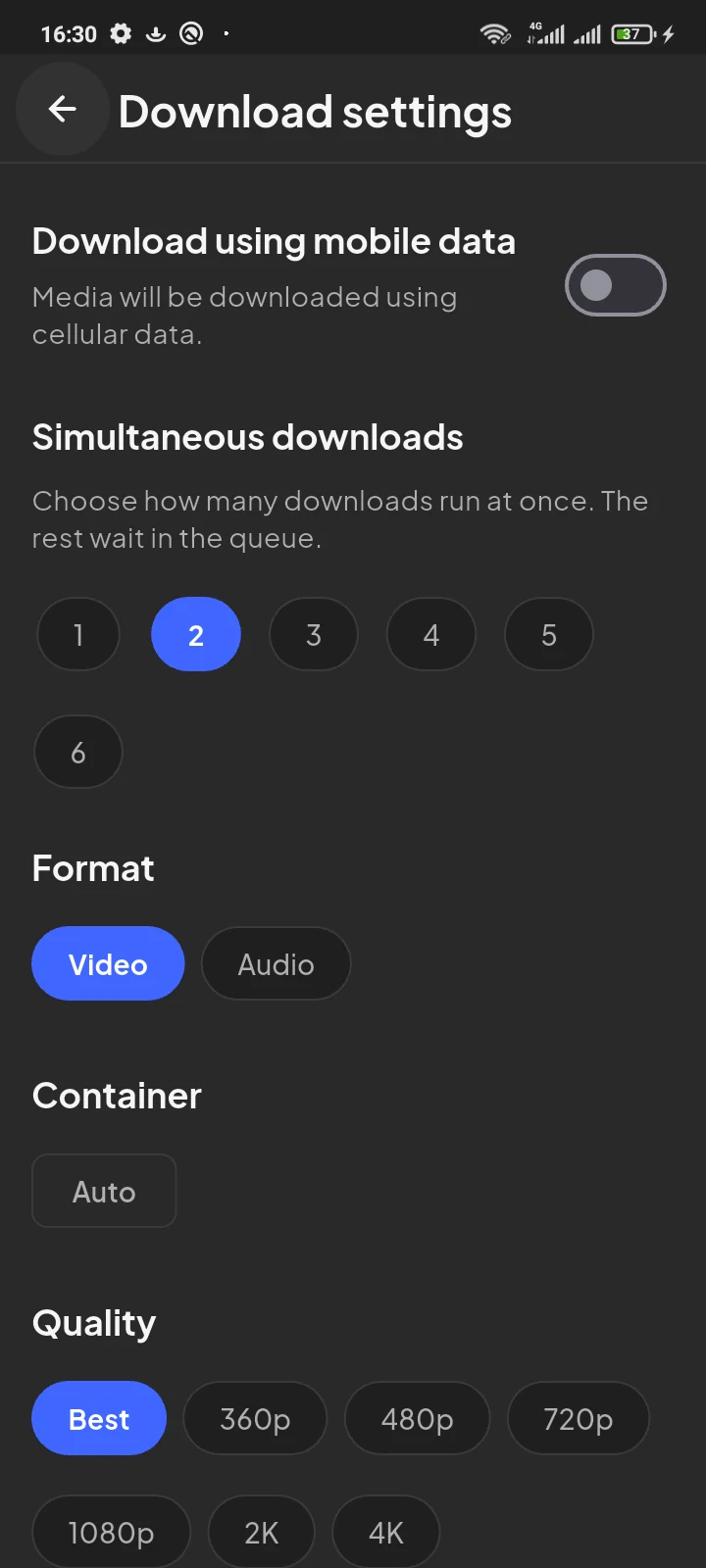
In our test, the waiting state cleared after we enabled mobile data. The first job ran and the second queued behind it because we had temporarily selected one simultaneous download.
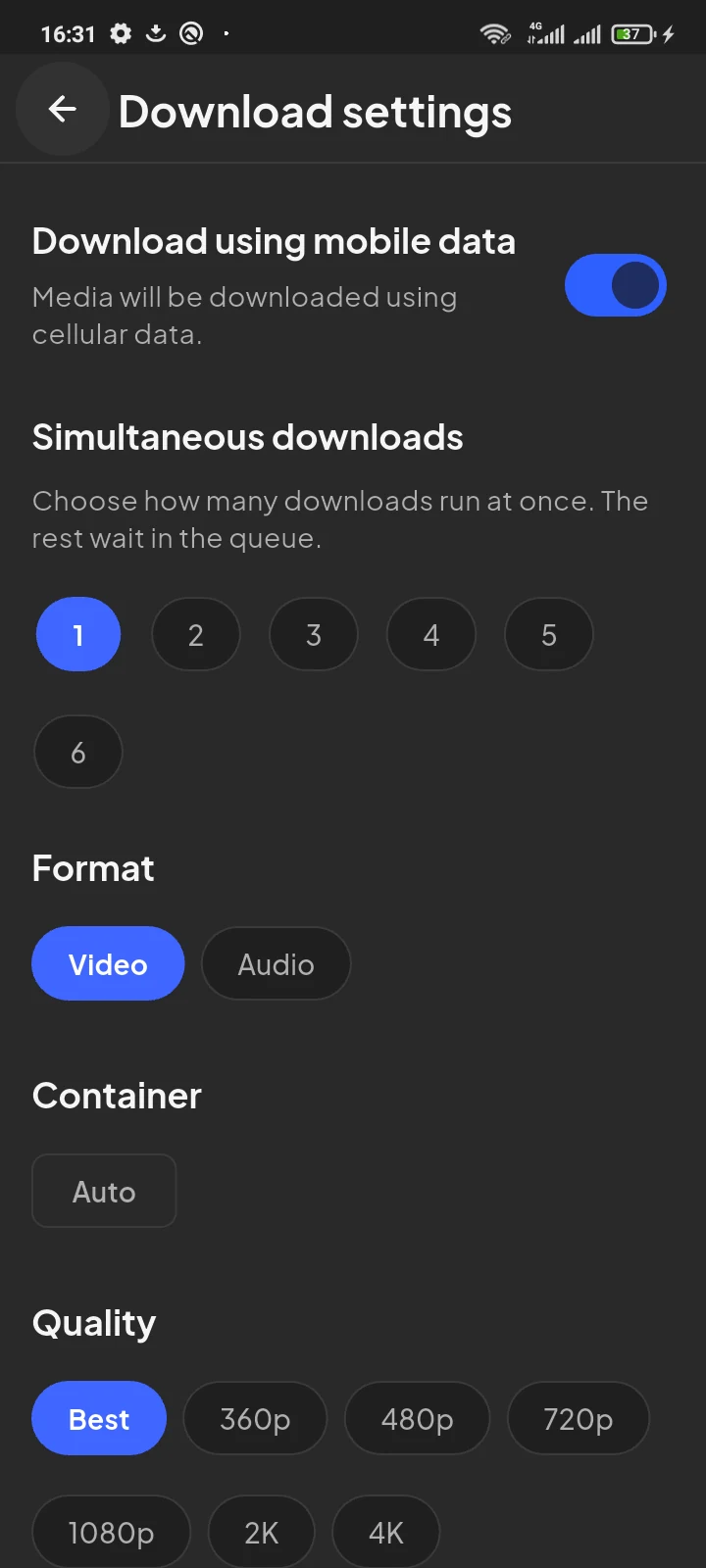
The preference can allow more than one queued job to use cellular data. Review your queue before enabling it. If you use it only for a test, turn it off afterward if that is your preferred policy.
Use a short permitted source or an audio row with a small size estimate. For video, choose a lower available resolution when it meets your needs. Duration and encoding affect size too; 360p alone is not a fixed data limit.
Our M4A sample was about 9.8 MB and the 360p video about 27.6 MB in the completed library. Neither figure predicts the size of another source. Stop or pause a test if it would exceed your allowance.
Under Simultaneous downloads, the tested app offers values from 1 to 6. Choose 1 to check one job without other SaveVo transfers competing with it. Additional jobs wait in the queue.
A higher limit does not create more bandwidth. It may help when several small jobs can share the connection, but one large job can still be constrained by the source or network. Change one thing at a time so the result is understandable.
Our original limit was 2. We used 1 for the test and restored 2 afterward. The video also responded to Pause and Resume before finishing.
Work through these checks one at a time:
Read the result before repeating the download. Submitting the same URL again can add unfinished work without resolving its cause.
First confirm that the job progresses with SaveVo open and that it is not paused or waiting for Wi-Fi. Then note whether it stops only after you leave the app or turn off the screen.
Android versions and phone manufacturers handle background activity differently. Check the phone's current, app-specific background or battery controls when that pattern occurs. This guide does not establish a universal menu path or verify all screen-off behavior. Avoid changing device-wide process limits as a routine download fix.
Internet access and permission to download using cellular data are separate. Check the SaveVo mobile-data preference and read the job's current status.
Start with one when diagnosing a problem. More active jobs share available resources and can make the cause harder to isolate.
Treat network policy as a separate check. If the job still says Waiting for Wi-Fi, resolve that policy or provide usable Wi-Fi rather than repeatedly pressing Resume.
The tested workflow saved local files and opened them in SaveVo's players. Check that the item has finished and its file still exists. The video guide and M4A guide show the corresponding workflows.