How to save YouTube audio as M4A with SaveVo on Android
Use SaveVo's Android Audio tab to select an available M4A stream, finish the download and play the audio file. See the tested format and size.
Enter an accessible YouTube video URL in SaveVo's Home screen, tap Download, select Video and an available resolution, then tap Download in the Choose quality sheet. When the transfer finishes, open Downloads → Videos and tap the saved item to play it.
We tested this path in SaveVo 1.0.2 on an Android 10 phone using the public Blender film Big Buck Bunny. The test needed neither a Google sign-in nor YouTube Premium. It does not establish access to private, members-only or other restricted videos. Use a source you have permission to save.
Open Home. Enter the video URL in Enter a URL, or use Paste link if you have already copied it. Our test used the short link https://youtu.be/aqz-KE-bpKQ.
Tap the Home screen's Download button. SaveVo analyzes the source and retrieves its choices. Check the title, creator and duration before selecting a file; a URL for a different video will produce different results.
In Choose quality, select Video. Tap a resolution row and check that it has the blue outline and check mark. Tap the sheet's Download button to queue that choice.
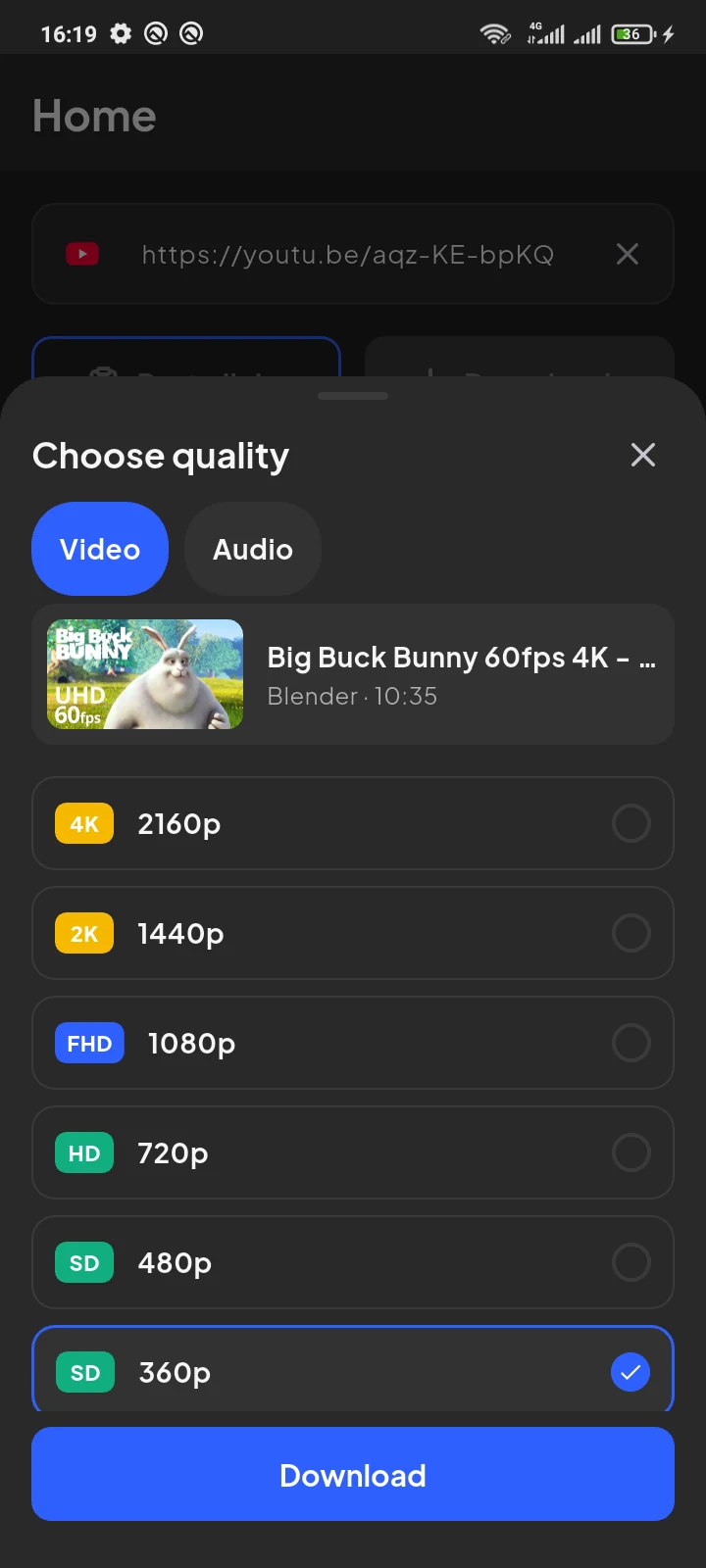
The Home button starts analysis; the sheet's button commits the selection. You can inspect the options before starting a transfer.
For our mobile-data test, we chose 360p. The finished file had these properties:
| Property | Result for the tested stream |
|---|---|
| Picture dimensions | 640×360 |
| Frame rate | 30 fps |
| Video and audio codecs | H.264 video and AAC audio |
| Container | MP4 |
| Displayed size | About 27.6 MB |
These describe this tested stream, not a promised size or format for every source. See choosing video quality on Android for the tradeoffs.
Open Downloads and read the job's status. A queued item is not yet a finished local file.
Our video initially waited for Wi-Fi because mobile downloads were off. Enabling mobile data allowed it to run. We also paused and resumed the test before it completed. The download troubleshooting guide explains these states.
After completion, choose Downloads → Videos and tap the item. SaveVo opened its video player and played the saved MP4 in our test.
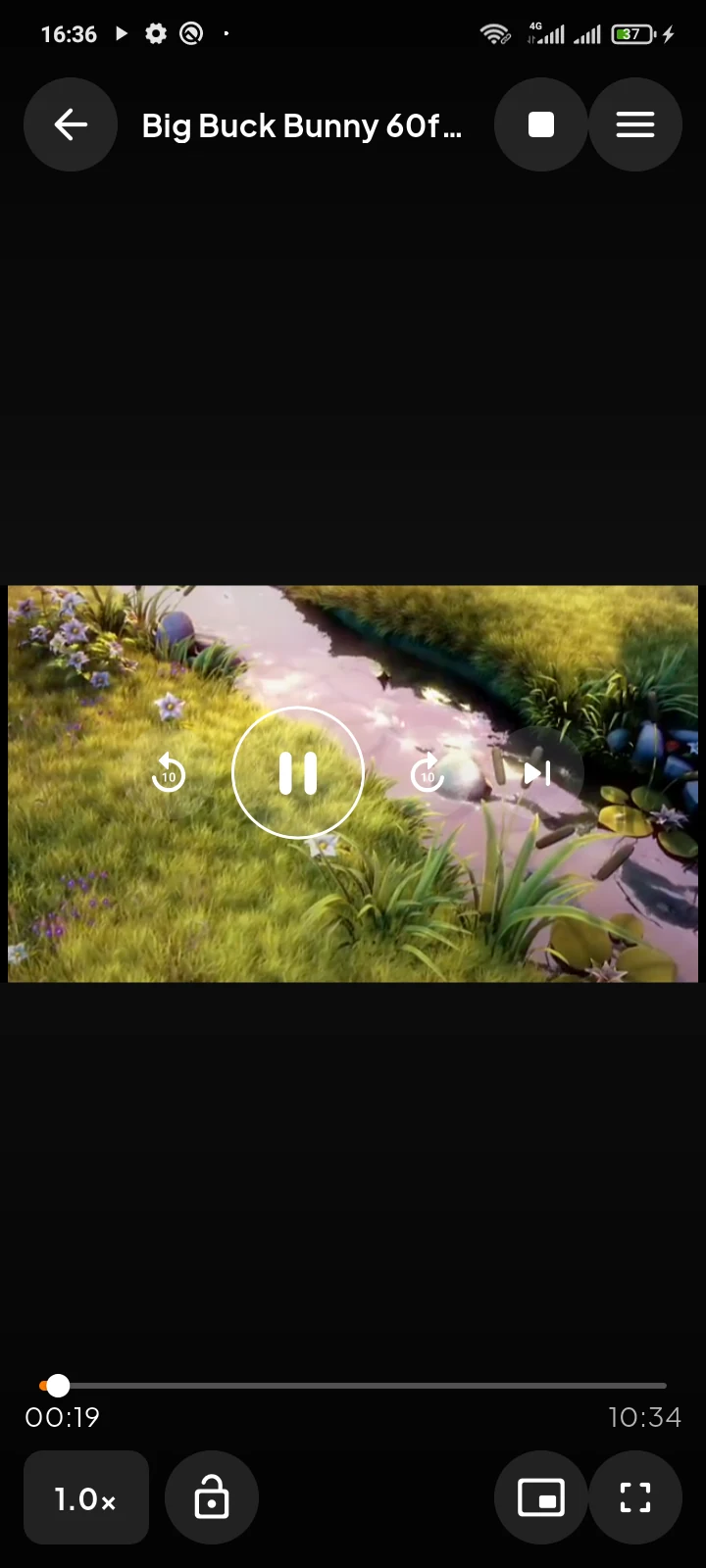
The title of our source contains “4K” and “60fps,” but the selected file was 360p at 30 fps. Check the selected stream rather than relying on the title or thumbnail.
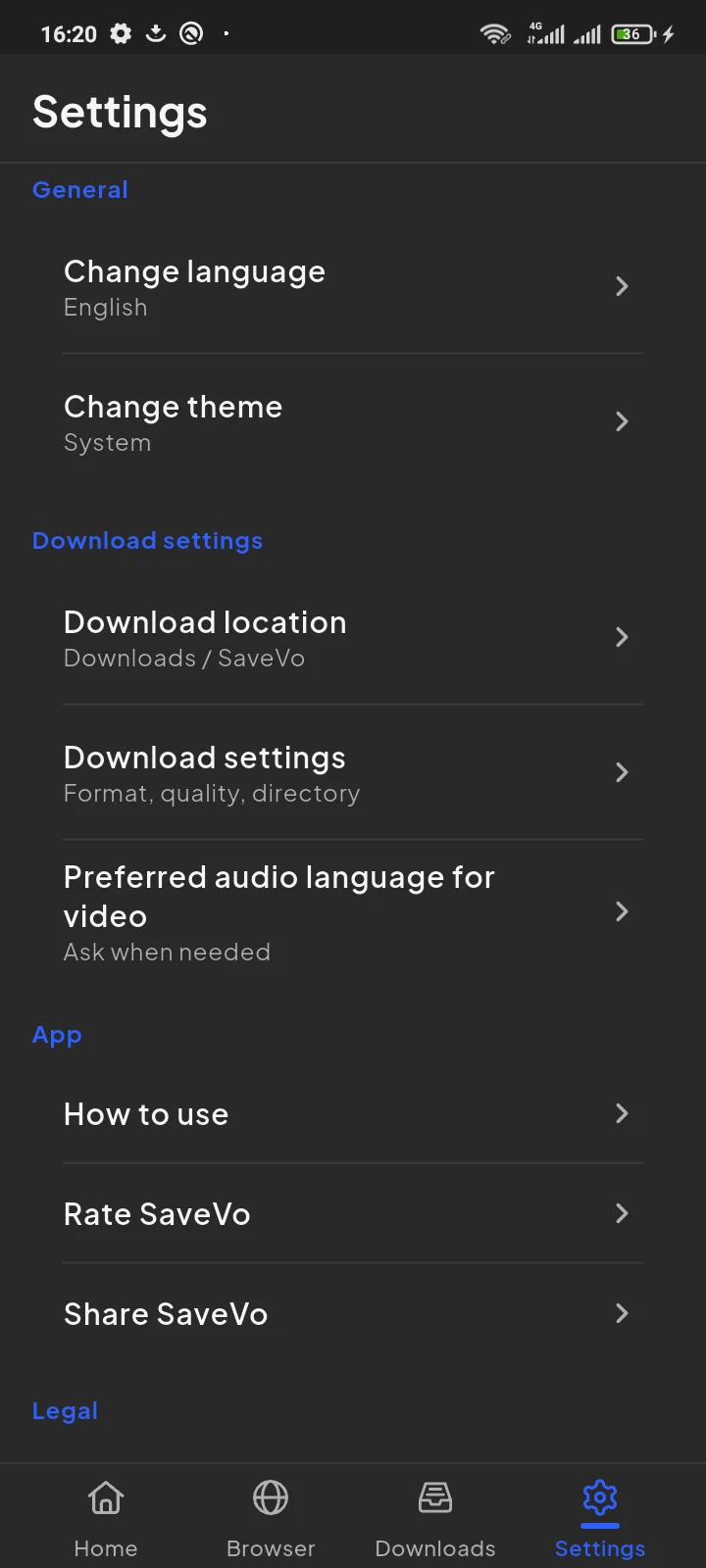
To check the destination, open Settings → Download location. Our phone showed Downloads / SaveVo, and the finished MP4 was present in that folder. Your selected location may differ.
Check the URL and the actual status first. A video that has become unavailable needs a source-access check; a paused job needs resuming; a network-policy wait needs the appropriate connection or setting. Repeatedly adding the same URL does not resolve those causes.
If the finished file exists but fails to play elsewhere, check the destination player's support for its video codec, audio codec and container. Renaming the extension does not convert the media.
This tested SaveVo workflow produced a local MP4 file in the phone's selected download folder. Check the source's permissions and your intended use before saving it.
This test covered an accessible public video. It did not verify authenticated private-video downloads. A browser sign-in alone is not evidence that SaveVo's downloader can access that source.
An estimate depends on the source and transfer. Our 360p job initially displayed Size unavailable and Downloading; the completed item then showed its size. Read the status before treating the missing percentage as a failure.
Choose Audio in the quality sheet. Follow the Android M4A guide to select an available audio stream.
Sample artwork and film frames: © Blender Foundation / www.bigbuckbunny.org, CC BY 3.0.