How to download a YouTube video on Android with SaveVo
Save an accessible YouTube video with SaveVo on Android: enter its URL, choose video quality, check the queue and play the saved file.
Paste an accessible video URL into SaveVo, tap Download, and choose a resolution in the Choose quality sheet. Select Video before choosing the row. The options come from that source: choosing 4K cannot add detail to a video that only offers 720p.
The screenshots here show SaveVo 1.0.2 on an Android 10 phone. A different video may offer fewer resolutions.
These are two separate Download buttons: the first retrieves the available choices; the second queues the file.
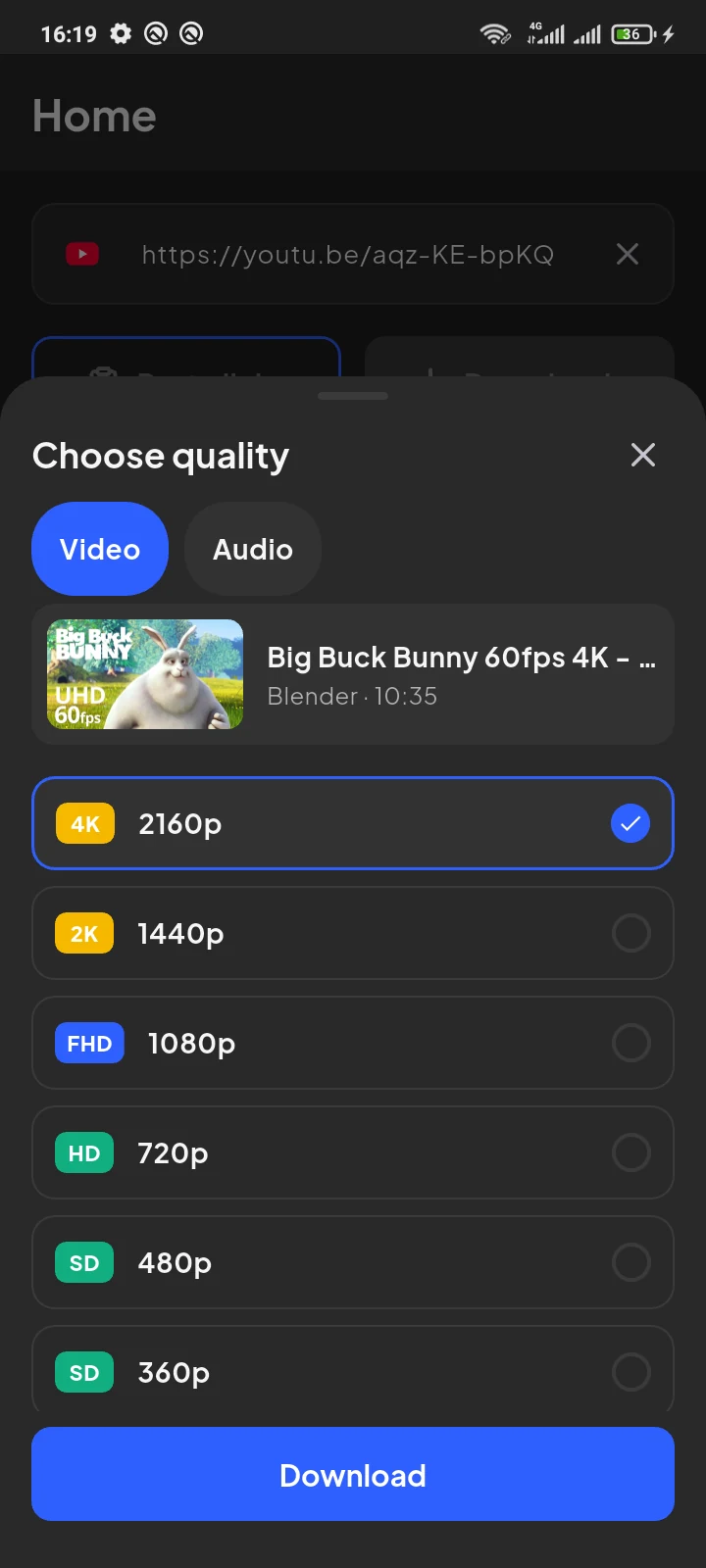
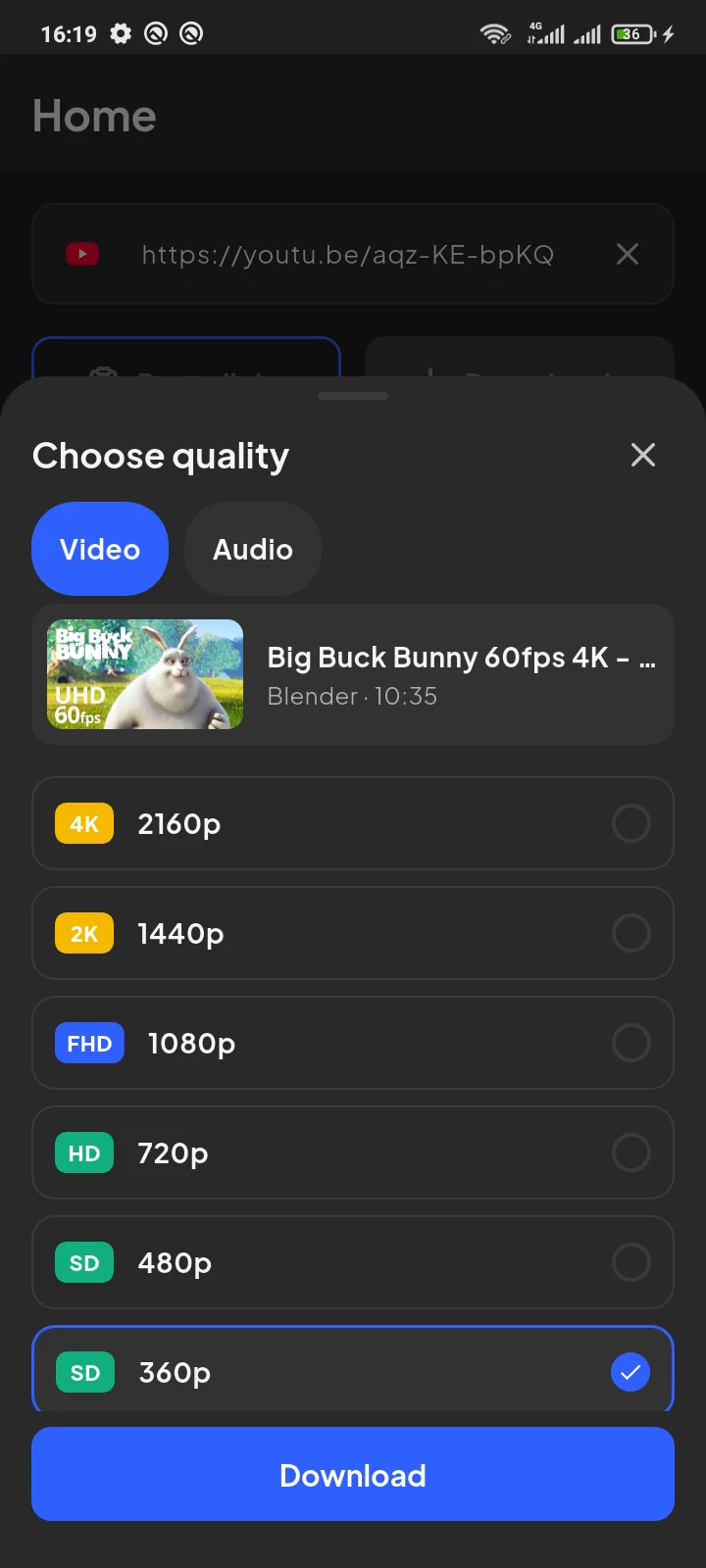
In our test, the public Blender sample offered 2160p, 1440p, 1080p, 720p, 480p and 360p in the visible list. We selected 360p for a small test transfer. That does not change which choices another source will offer.
The finished MP4 was 640×360 at 30 fps with H.264 video and AAC audio. SaveVo displayed it as about 27.6 MB, and it played in the built-in player. Although the source title says “60fps 4K,” the selected stream had different properties. Inspect the actual output when a particular resolution or frame rate matters.
| Your use | A practical starting point | What to check |
|---|---|---|
| Listening with occasional viewing | 360p or 480p, if offered | Can you still read any text you need? |
| Watching on a phone | 720p or 1080p, if offered | Does the added detail justify the file size? |
| Detailed tutorials or a larger display | 1080p or above, if offered | Is small text clear, and can the destination player handle the file? |
| Archiving a permitted source | The best useful available version | Storage, codec support and a separate backup |
Treat these as starting points. A clean 720p source may be more useful than a poorly compressed 1080p source. Longer videos also take more storage than short clips at similar encoding settings.
If you only need the sound, switch to Audio instead. See how to save YouTube audio as M4A.
| Property | What it means | Why it matters |
|---|---|---|
| Resolution | Picture dimensions, such as 640×360 | The amount of image detail available |
| Bitrate | Encoded data per second | Compression and file size |
| Frame rate | Pictures per second, such as 30 fps | How motion is represented |
| Codec | How a stream is encoded, such as H.264 | Playback support and encoding characteristics |
| Container | How streams are packaged, such as MP4 or WebM | The file format your player needs to read |
A file extension alone does not identify every stream inside it. MDN explains the container and codec distinction.
This Android sheet presents resolution choices. It does not show the Windows app's separate frame-rate and codec preference menus. Use the Windows quality guide for those controls.
YouTube's published bitrate tables describe recommended uploads. They are not a promise that a downloaded 1080p stream has that bitrate. YouTube's encoding recommendations also advise uploading at the original frame rate.
No. Choose an available source format. SaveVo's quality picker does not reconstruct missing picture detail.
No. A title describes the upload. The selected stream's actual properties determine the saved file. This sheet does not provide a separate FPS choice.
No. Duration, bitrate, codec and source quality all influence size. Compare the same scene on the device where you intend to watch it.
Choose the version that meets your viewing needs. An audio lesson, a phone-sized clip and a video you will inspect on a large display have different requirements.
For the complete workflow, read download YouTube videos on Android with SaveVo.
Sample artwork: © Blender Foundation / www.bigbuckbunny.org, CC BY 3.0.